![method 10y white retro font.png]](https://www.methodschools.org/hs-fs/hubfs/method%2010y%20white%20retro%20font.png?height=33&name=method%2010y%20white%20retro%20font.png)
How to Set Up a New Student in Compass
To set up a new student in Compass, create the account by going to:
1. My Students -> New... -> Student
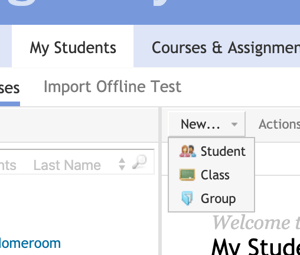
2. Enter Student Information:
- First Name
- Last Name
- Graade Level
- User name
- Password
- Parent Login
3. Select appropriate "Solution" - Pathblazer Reading & Math K-5 OR 6-8
4. Then select "Subjects" and the appropriate grade level
- LA Extensions
- Language Arts
- Math
How to Assign Student to your Homeroom
- Select "My Students" from the top tabs
- Select "My Students" again in the right side bar
- Select the student you wish to include in your "homeroom" by selecting the check mark
- Above the list, select "Actions," then "Add to Class"
- Select the class from the list. If you do not have classes set up yet, you can select "Create New"
How to Assign Coursework to Student
1. Select "Courses & Assignments" from the top tabs
2. Select "Assignment Archive"
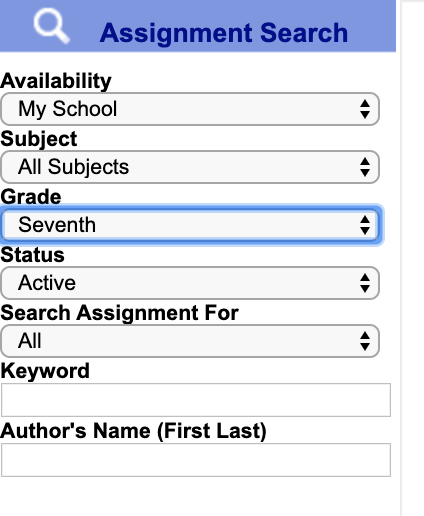
3. Under the Assignment Search Menu, filter your search to:
Availability: My School
Grade: Select the Appropriate Grade Level for the student
Then hit "Search"
5. A list of assignments will populate, select the assignments - those that are the subject area followed by the grade number are assignments that cover the scope and sequence of an entire year of curriculum.
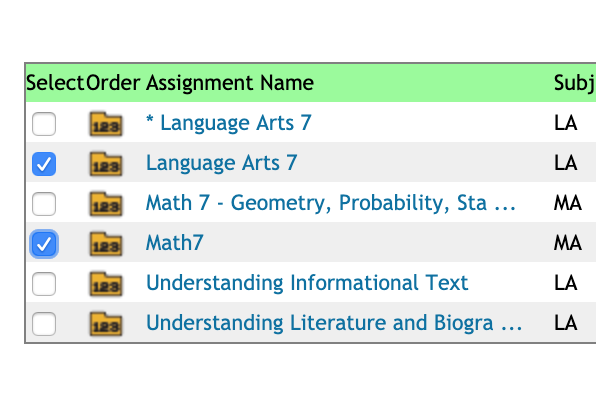
6. Select "Assign to Students" above the list, select the student(s) you want to assign to this coursework, and select "Finish"
How to Create Reports to Monitor Progress and Collect Work Samples